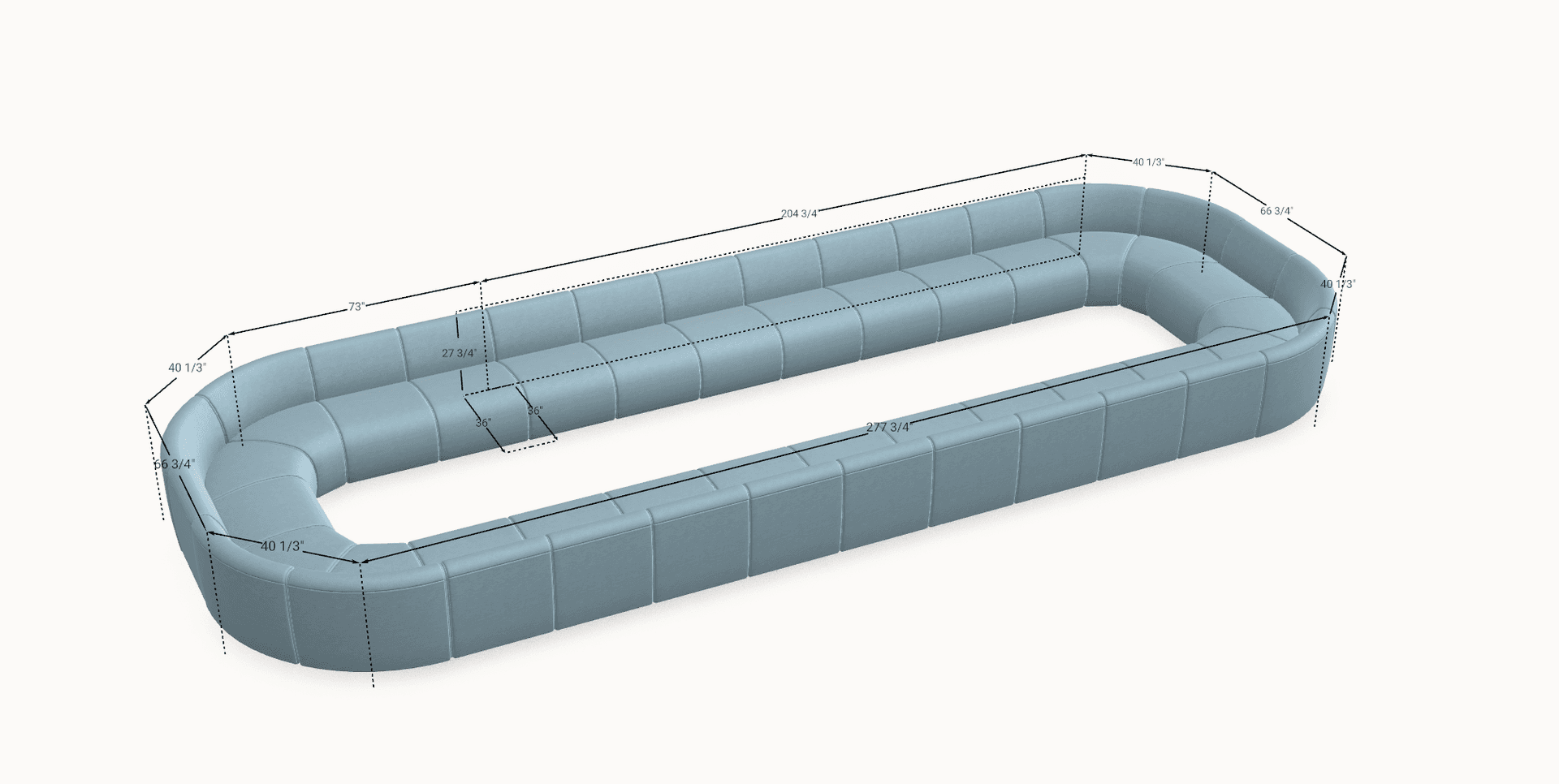
Short answer: Cozey Studio is our guided 3D configurator. You start from a blank canvas and build your sofa one module at a time, and at each step it offers only the modules that can attach next. You can build any configuration you can imagine, such as an extra seat, a long sofa, a loop or a different arm at each end. Our standard product pages have a step-by-step selector that is quicker when one of our ready-made layouts already fits.
A modular sofa is made of separate modules that connect, so you can change its size and shape. That is easy to say and harder to picture. Studio lets you see it happen: add a seat, see what can come next, and watch the size change as you go.
On This Page
- What is Cozey Studio, and why did we build it?
- How does Cozey Studio work, step by step?
- What can you build in Cozey Studio?
- How do you share a design by link?
- How does Cozey Studio compare with the standard product page options?
- Explore the Studio
What is Cozey Studio, and why did we build it?
Cozey Studio is a 3D configurator for our seating. You build the sofa on screen, one module at a time, and see the result before you order. Our Studio page describes it as a custom configurator that is fully integrated with the rest of our site.
"We built this to give a real sense of what we mean by modular and configurable so you can truly design anything you can imagine from our collections. From something very simple to something extremely wild, the possibilities are endless," says Sam Chaaya, Manager, Experience Design at Cozey.
We started with wall shelving. We first built a fully custom 3D configurator for our Themis and Altitude shelving, because a wall is mix and match: a cabinet goes on this row and not on that one. Seating is different. Most customers fit a two-seater or a three-seater, so we made Studio guided rather than free-form. That way you cannot build something that does not work.
We built it for three reasons:
- To fill gaps in our standard range. Our standard sofas are offered in set sizes, so a four-seater or one extra seat can be hard to get from the standard options.
- To show what modular really means. You add one module at a time and see which modules are available next.
- To let you design what you have in mind. That can be something simple or something extremely wild, such as a long six-seater that we do not offer as a standard size. Our modular sofa guide explains the idea behind it.
How does Cozey Studio work, step by step?
1. Add your first module. Click "Add first module". The first step offers a set of starting modules, and you pick the one that begins your sofa.
2. Follow the guided choices. After each module, only the modules that can physically attach on that side are offered, so the choices narrow as you build. Fewer decisions, and no impossible layouts.
3. Choose the arm at each end. Instead of choosing one arm style once for the whole sofa, you choose at each end. One end can finish with a different arm from the other, for example a lower arm on the side that faces the TV.
4. Choose cushions per seat. You set cushions seat by seat. Your last choice carries on to the next seat you add until you untick it, so you do not end up with 17 lumbar cushions. The standard configurator does not offer a per-seat choice.
5. Add ottomans, seats and corners. You can keep adding modules until the shape is right.
6. Delete or replace any module. Changed your mind? Remove a module or swap it for another.
7. Check the size. The overall dimensions appear at the bottom left of the screen, and a dimensions control shows the size of a single module.
The first time you use Studio, hints guide you, and they stay until you tap OK. The pointer and color changes show which parts of the design you can click. Our guide to how many modules you need is a useful companion if you want to check a wall before you start.
What can you build in Cozey Studio?
You can build any configuration you can imagine. Studio is built for layouts that sit between our ready-made options or beyond them.
- A long sofa beyond our standard sizes. Add seats in one long row until it suits the wall, such as a six-seater.
- A loop. Any of our sofas can be built into a loop or circle, with four corner seats back to back.
- A sofa with an extra seat. Add one more seat without jumping to the next standard size.
- Mixed arms. A different arm at each end.
Some of the builds we have enjoyed most are playful and a little outrageous. Two examples we can share are a circular loop of four seats back to back and a very long six-seater. They are fun, but the same tool also builds ordinary two-seaters and three-seaters.
How do you share a design by link?
Studio has a share button. It gives you a link to your design, not an image. The link opens the design with its price and an add to cart button, so a designer, a partner or a friend can send it on to someone who will buy it.
The link can also allow the person who receives it to edit. In that case it opens an editable copy, so your original is unchanged.
How does Cozey Studio compare with the standard product page options?
Our standard product pages have a step-by-step selector where you choose a seat type, a style, a fabric and a ready-made layout. Each page also links to individual modules.
How does Cozey Studio compare with the standard product page options?
| Standard product page options | Cozey Studio | |
|---|---|---|
| How you start | Pick a seat type, style, fabric and a ready-made layout | Click "Add first module" on a blank canvas |
| What you can add next | Choose from named layouts, or shop individual modules | Only the modules that can attach to the last one |
| Arms | One choice for the whole sofa | Chosen at each end, so each end can differ |
| Cushions | One selection for the sofa | Chosen seat by seat |
| Beyond the ready-made layouts | Shop individual modules | Build a long sofa, an extra seat or a loop, module by module |
| Size check | "View Full Dimensions" on the product page | Overall dimensions on screen, plus a single-module control |
| Best for | A layout that already matches one of ours | A shape our standard layouts do not give |
Explore the Studio
Product specifications can change. Check the current dimensions on the product page before ordering.